How to Apply for Google Ad Grants, Step by Step
By Mike Krieg · Updated October 23, 2026
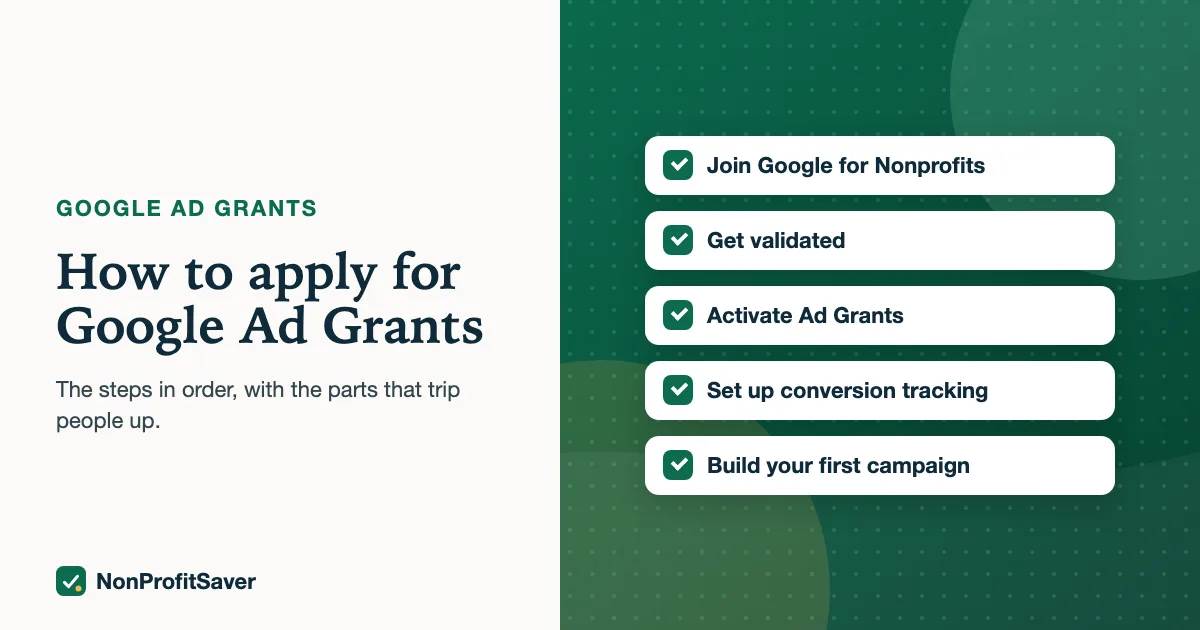
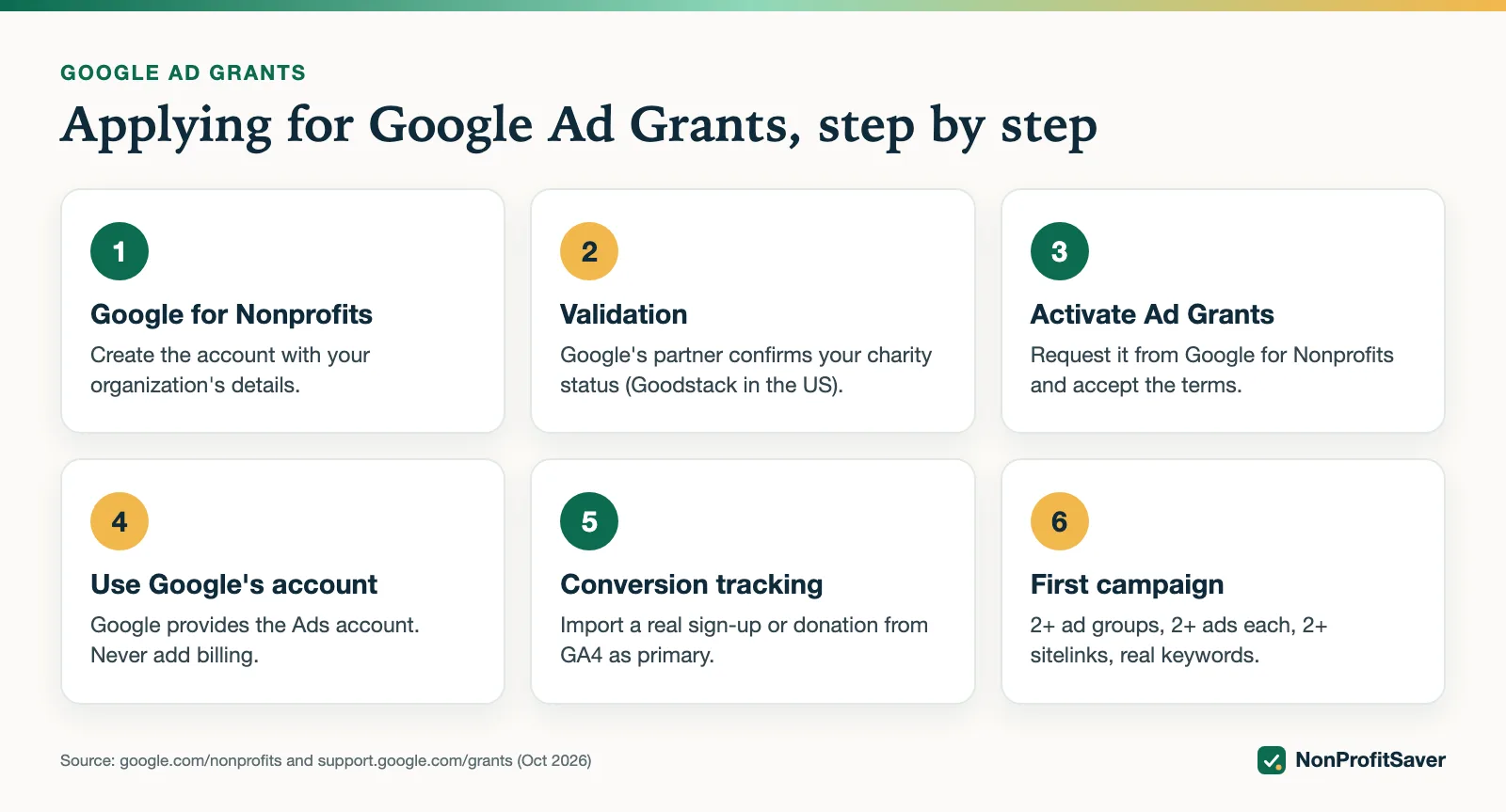
To apply for Google Ad Grants you join Google for Nonprofits, pass verification, activate Ad Grants, and submit an Ad Grants account for review. There's no fee. As of October 2026 the whole process starts at Google for Nonprofits.
Before you start, check the eligibility rules: in the US, IRS 501(c)(3) registration or a group exemption, no government, hospital or school organizations, and a real website on your own domain.
Step 1: Get your documents ready
- Your EIN and IRS determination letter (or your denomination's or network's group exemption, plus proof you're on its listing).
- Your organization's legal name exactly as the IRS has it.
- A Google account you'll use for administration. Use an organization address, not a personal one, so access doesn't leave with one person.
- Your organization's official address and registration number, which Google passes to Goodstack for checking.
The organization address matters for more than tidiness. As of October 2026, Google's Goodstack verification page says that if you apply with a personal email, Goodstack may ask for a signed letter from a board member, director or executive officer confirming your role. Google's activation guide says to use the same username for Google for Nonprofits and Ad Grants, and its account access page warns that a different, personal Gmail address won't give you access to the grant account.
Storyline' grant account was created in December 2017, so we went through an earlier version of this process. The steps below follow Google's current pages, not our memory of it.
Step 2: Join Google for Nonprofits
Sign up at Google for Nonprofits and request verification. Google's validation partner, Goodstack, checks your status. Google sends Goodstack your legal name, registration number and official address, and Goodstack compares them with official government registries. Google says most applications are reviewed within 3 to 5 business days.
If Goodstack can't verify you automatically, it emails you for documents such as founding bylaws, registration certificates or a tax exemption determination letter. Those emails come from verifications@mail.goodstack.org, so check your spam and junk folders. If you're refused, Google's page points to a Goodstack verification appeal form: confirm you meet the eligibility rules, gather current documents, and appeal. Setting up the Google for Nonprofits account itself is covered in Google for Nonprofits account setup.
If verification fails and you're a church that never applied for an IRS letter, see Google Ad Grants for churches.
Step 3: Check your website first
Google reviews your website when you activate Ad Grants. Before you do:
- The site is on your own domain and loads over https.
- Your mission is stated clearly.
- Pages have real content; the site isn't a single page or mainly a store.
- Donation or sign-up pages work.
Google's website policy (as of October 2026) adds a few that catch people out: your nonprofit must own the domain, and it can't forward to a social network or separate portal; no excessive third-party ads such as AdSense; no broken links, empty pages or buttons that don't work; and pages should load quickly on mobile. A quick test is to open every page in your main menu on your phone and click every donate and sign-up button. More on what a page needs once ads point to it: Ad Grants landing pages.
Step 4: Activate Ad Grants
In Google for Nonprofits, choose Ad Grants and follow the activation steps. Google walks you through creating the Ad Grants account.
As of October 2026, Google's activation guide describes the steps like this:
- Sign in to Google for Nonprofits and click Get started under Google Ad Grants.
- Enter the website your organization will use.
- Watch the welcome video (Google says it takes about 5 minutes) and tick the box confirming you watched it.
- Click Submit activation request.
The same guide says not to create a Google Ads account yourself during activation, because the account is provided when you're approved. Review "may take several business days", and you'll get an email when a decision is made.
Two things matter here:
- Use the account Google provides. Don't create one yourself. Google's activation pages don't mention Expert Mode or Smart Mode; to build search campaigns, keywords and ads yourself you need the full interface (Expert Mode), and if the account opens in the simplified Smart Mode, Google Ads offers a switch to Expert Mode.
- Never enter payment details. A grant account has no card. If Google asks for billing, stop: you're in a regular paid account.
Write down your grant account's 10-digit customer ID. If you ever end up with more than one Google Ads account, that number tells you which one holds the grant.
Step 4b: Accept the two invitations
After approval, Google's account access page says to expect two emails at the address you applied with: one inviting you into the Ad Grants account, and one inviting you to accept a payments profile. Allow up to 3 business days for them to arrive, and check spam, junk and promotions folders.
The payments profile surprises people. Google says it "is only a requirement for account access" and that "as a nonprofit organization, you will not be charged." What Google's page doesn't say is whether you'll be shown a card field. Our rule stays simple: accepting the payments profile invitation is expected, but if you're asked to add a credit card, stop and check the customer ID against your approval email before going further.
How long it takes, end to end
| Stage | What Google says (October 2026) |
|---|---|
| Goodstack verification | Most reviewed within 3 to 5 business days |
| Ad Grants activation review | "May take several business days" |
| Invitation emails after approval | Allow up to 3 business days |
| Conversion tracking and first campaign | Your own time; a few hours |
Using the upper end of the published figures, verification and the invitations alone can take 5 + 3 = 8 business days, before you add an activation review that has no fixed length. Plan on a few weeks from start to first ad, and don't promise your board a launch date.
Step 5: Set up conversion tracking before your first campaign
Accounts created since January 2018 need valid conversion tracking and at least one conversion a month, and newer accounts must use conversion-based bidding (program policies). Set it up before you build, or your first campaigns will barely show. How: Ad Grants conversion tracking with GA4.
Step 6: Build a first campaign that meets the rules
At least 2 ad groups, at least 2 ads in each, at least 2 sitelinks, no single-word keywords, and locations you actually serve. The full checklist: Google Ad Grants requirements.
Start with the two or three questions your website answers best. Each one becomes an ad group that lands on the page with the answer.
If you're refused
Google's message usually names the reason: verification, website, or eligibility. Fix that one thing and reapply. For a website refusal, add substance to your mission and program pages and make sure everything loads over https.
A refusal at the Goodstack stage goes through Goodstack's appeal form, described above. A refusal at the Ad Grants stage is about the program, so reread Google's eligibility rules and website policy before you resubmit. Being refused at the start is different from being deactivated later; if an approved account has been paused, see Google Ad Grants reinstatement.
Help, if you want it
Google's Ad Grants help center is free and covers every step. If you'd rather have a guide, checklist and campaign builder that refuses anything against the rules, our Google Ad Grants Kit is $97 once (early access; sales haven't opened yet). Plain about our interest: it's our paid product, and you can do all of this without it.
Frequently asked questions
How long does the Google Ad Grants application take?
Google doesn't publish a fixed time. Verification through Goodstack and the Ad Grants review can each take days. Have your documents and website ready before you start.
Do I need a credit card for Google Ad Grants?
No. A grant account has no billing. If Google asks for payment details, you are setting up a regular paid account, not the grant account.
What is Expert Mode in Google Ads?
The full Google Ads interface, as opposed to Smart Mode's simplified one. Google's Ad Grants activation pages don't mention either mode: the grant account is provided for you. To build standard search campaigns with your own keywords and ads, you work in Expert Mode, and Google Ads lets a Smart Mode account switch to it.
Related guides
- Google Ad Grants for Nonprofits: How It Works, the Rules and the Catch
- Google Ad Grants for Churches: Who Qualifies and What Paperwork Works
- Google Ad Grants Requirements: The Compliance Checklist
- Ad Grants Conversion Tracking with GA4, Step by Step
This guide is general information, not legal, tax, or financial advice. Prices change; see each linked source. Report a correction.