The Google for Nonprofits Account: Signing Up, Verification and What It Gives You
By Mike Krieg · Updated October 23, 2026
A Google for Nonprofits account is the free account Google uses to confirm your organization is a registered charity, and it is the only door to Google Ad Grants, Google Workspace for Nonprofits, the YouTube Nonprofit Program and Google Maps Platform credits. You request it at Google for Nonprofits, Google's partner Goodstack verifies you, and then you activate each product separately.
This guide covers the account itself: what to prepare, how verification works, what each status means, and what you get once you're in. For the Ad Grants steps that come after, see how to apply for Google Ad Grants. If Google's pages and this guide ever disagree, Google's pages win.
What the account is
The Google for Nonprofits account is an administrative console, not a product. Google's Goodstack help page says approval "gives the organization access to the Google for Nonprofits administrative console, where individual Google tools must be activated separately," as of October 2026. Being verified doesn't mean you're approved for every product. Ad Grants in particular has its own review of your website.
What you can activate
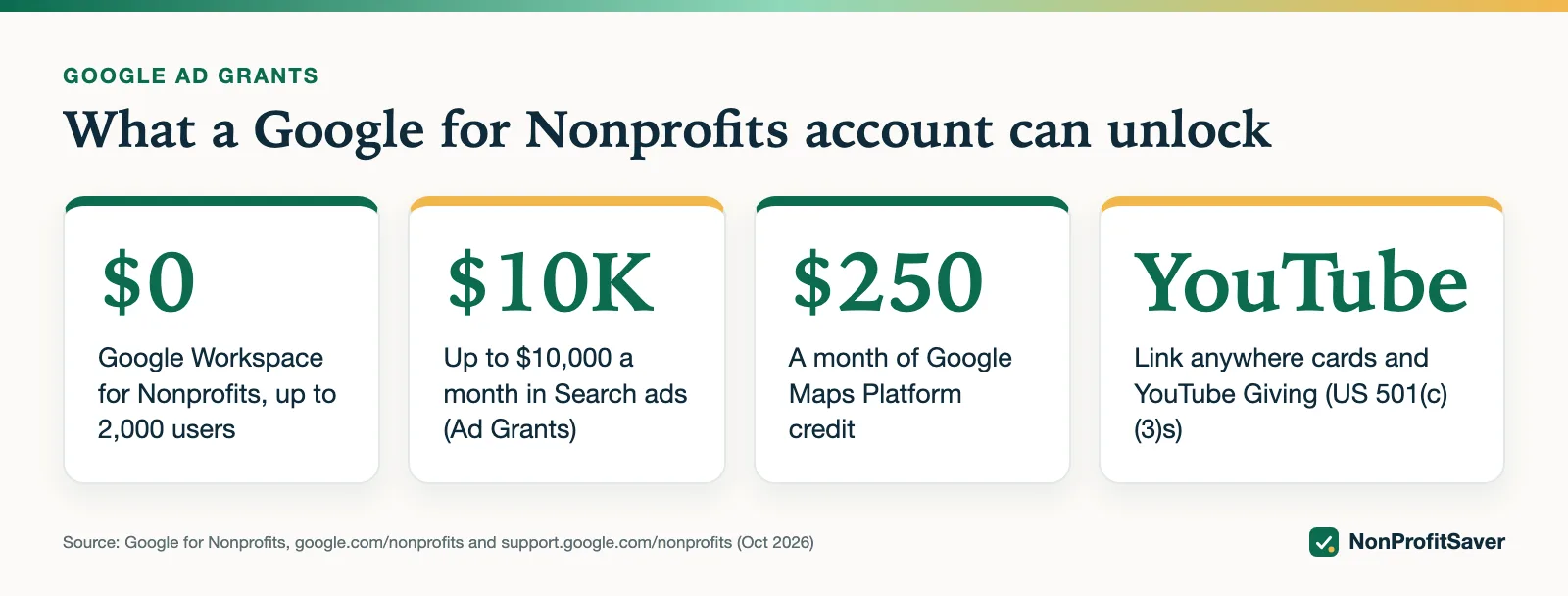
Google's About Google for Nonprofits page lists four products, as of October 2026:
| Product | What Google says you get | The catch |
|---|---|---|
| Google Workspace for Nonprofits | $0 per user per month for up to 2,000 users, on Google's Workspace page; 70 to 75% off the Business and Enterprise editions | The free edition has fewer features; your domain must clearly belong to your organization |
| Google Ad Grants | "Up to $10,000/month in Search ads on Google Search" | In-kind ads, not cash; a separate website review and monthly rules |
| YouTube Nonprofit Program | Link anywhere cards, dedicated support, and YouTube Giving fundraisers | Google's YouTube page limits YouTube Giving to US-registered 501(c)(3) public charities |
| Google Maps Platform | $250 a month of Maps Platform credit | Useful only if you build maps into your site or apps |
The $10,000 Ad Grants figure is a monthly limit. Google's budgets page puts the daily cap at $329 and says plainly, "This is a limit, not a guarantee of spend." What the grant is and how it actually gets used is in our Google Ad Grants overview.
Google's pages also say "Not every product may be available in every country." Log in to see what your country offers.
Before you sign up
Verification is a records check, so mismatched details cause delays. Get these ready first:
- Your legal name, address and registration number exactly as your country's charity registry has them. In the US that is your EIN and the name on your IRS determination letter. Google's page on finding your tax ID helps outside the US.
- The Google Account you'll administer from. Google's Ad Grants activation page says you must "use the same user name for your Google for Nonprofits and Ad Grant accounts." Pick it with care. Use an address at your organization's domain if you can. Goodstack's page says that if you use a personal email, it may ask for "an official letter signed by a board member, director, or executive officer confirming your role."
- Authority to sign. Google's Additional Terms of Service say the account holder must be "an authorized representative who is able to bind others on behalf of the entity." Read the terms before you agree; they include a nondiscrimination commitment covering hiring and programs. If your organization has questions about how that applies to you, ask your own attorney rather than relying on us.
- Your eligibility. Check the country rules, excluded types and the US 501(c)(3) requirement first. We cover them in detail in Google Ad Grants eligibility.
Plan for more than one administrator. Google lets you add a new administrator after approval, which keeps the account from leaving with one staff member.
How to sign up, step by step
Google's five steps to get started, as of October 2026:
- Review eligibility for your country.
- Request an account. Go to Google for Nonprofits and click Get started. If your organization already has an account, Google walks you through requesting access to it instead of creating a second one.
- Wait for verification. Enter your registered name, address and registration ID. Google sends them to Goodstack.
- Activate products one at a time once you're verified.
- Use Google's guides to set each product up.
Before step 2, ask around. If a former staff member or volunteer opened an account years ago, request access to it (Google's steps) rather than starting over. An older grant account can carry rules a new one doesn't get, as explained below.
How Goodstack verification works
Google uses Goodstack, an independent company, to decide whether you qualify. Google's own FAQ on that page is direct: "Google for Nonprofits does not directly evaluate or determine the charitable eligibility outcome." Goodstack checks your details against official registries and, if it can't match you automatically, emails you for documents.
How long it takes. Google's pages give two different answers. The getting-started page says "Most requests will be reviewed in 2-14 business days." The Goodstack page says "Most applications are reviewed within 3 to 5 business days." We can't tell you which is closer for your country; plan for the longer one.
Where the email comes from. Goodstack writes from verifications@mail.goodstack.org. Check spam and junk folders. Google's page notes that "all actions are requested via email," so a missed message can stall the whole request.
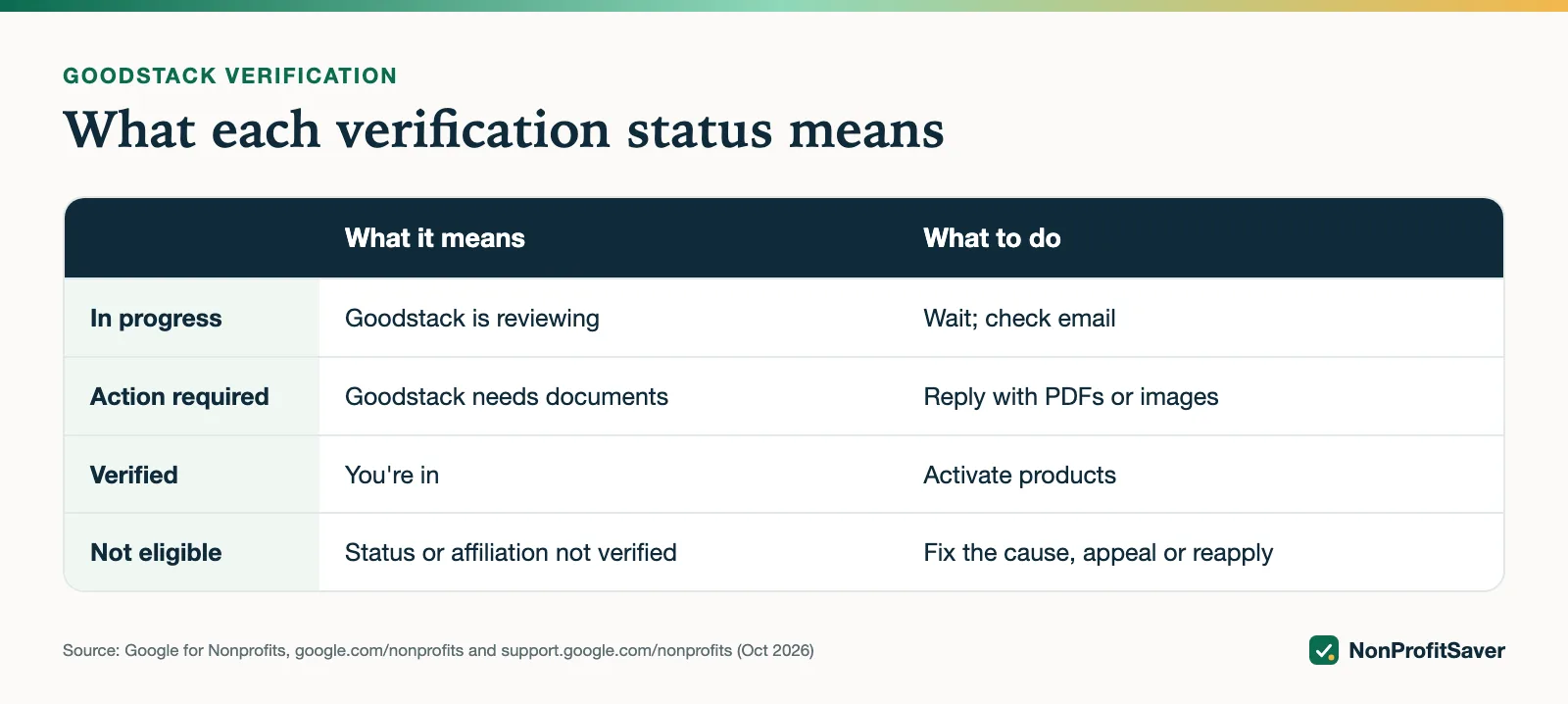
What the statuses mean. Google's account status page lists four:
| Status | What it means | What to do |
|---|---|---|
| In progress | Goodstack is reviewing | Wait; check email |
| Action required | Goodstack needs information or documents | Reply to the Goodstack email with PDFs or images |
| Verified | You're in | Activate products |
| Not eligible | Goodstack couldn't verify your status or your affiliation | Read the email, fix the cause, appeal or reapply |
If nothing happens after 5 business days. The Goodstack page lists the usual causes: you haven't verified your email address, your nonprofit hasn't confirmed you're associated with it, or documents are still needed. If you see no email at all, it links a Goodstack support form to ask for an update.
If you're rejected. You have two routes. Appeal through Goodstack's form with updated documents, or fix the problem and submit a new request from your Google for Nonprofits account. Google asks you to "try to address any issues before submitting a new request." There is no fee either way.
Where TechSoup fits now
Older guides and many search results for "TechSoup Google Ad Grants" describe getting a TechSoup validation token before applying to Google. That isn't how it works on Google's current pages. Google's eligibility guidelines name Goodstack as the validation partner for "all organizations" and don't mention TechSoup, as of October 2026. TechSoup's own help center has an article titled "Google for Nonprofits Validations No Longer Supported by TechSoup"; we couldn't open it to quote it, so we rely on Google's pages here.
You don't need a TechSoup membership or fee to get any Google for Nonprofits product. If you're weighing TechSoup for other software, see TechSoup fees and TechSoup alternatives.
After you're verified: activating Ad Grants
Ad Grants is the product that takes the most care, because Google reviews your website before approving it. The short version from Google's activation page:
- Check your website against Google's website policy first: your own domain, HTTPS everywhere, substantial original content, a clear mission.
- In Google for Nonprofits, click Get started under Google Ad Grants and enter your website.
- Watch the five-minute welcome video and confirm it.
- Submit the activation request. Google says the review "may take several business days."
Google is explicit about one trap: "Do not create a Google Ads account at any time during the Google Ad Grants activation process. An account will be provided for you." If you're ever asked for payment details, you're in a regular paid account. Google's setup guide says that after approval you get two emails, one inviting you to the account and one to accept a payments profile, and that you "will not be charged."
The full walkthrough, including Expert Mode and conversion tracking, is in how to apply for Google Ad Grants. The rules you must keep afterwards are in Google Ad Grants requirements.
Why your account's age matters later
Some Ad Grants rules depend on when the grant account was created. Accounts created on or after 22 April 2019 must use conversion-based bidding, per Google's account management policy. Storyline, the small mission-mobilization nonprofit that runs alongside NonProfitSaver, has a grant account created in December 2017, so on 23 October 2026 it could switch to Maximize clicks with a $2 per-click limit. A new account can't. That's one more reason to reuse an old account if you have one.
Doing it yourself, or with help
Everything above is free and can be done from Google's own pages. For help running the Ad Grants account afterwards, our Google Ad Grants Kit ($97 once, early access; sales haven't opened yet) includes a setup guide, a campaign builder that refuses anything against the rules, and a weekly check. Plain about our interest: it's our paid product, and you don't need it to open or verify a Google for Nonprofits account.
Frequently asked questions
Is a Google for Nonprofits account free?
Yes. There is no fee to open the account or to be verified. The products inside it are free or discounted: Google Workspace for Nonprofits is $0, the paid Workspace editions are discounted, and Ad Grants is in-kind search advertising.
How long does Google for Nonprofits verification take?
Google's pages say most requests are reviewed in 2 to 14 business days. Goodstack's section of the same help center says most are reviewed in 3 to 5 business days. If you hear nothing after 5 business days, check your email for a request from Goodstack.
Does TechSoup still verify nonprofits for Google?
Google's current pages name Goodstack as the only validation partner and don't mention TechSoup. Older guides that send you to TechSoup for a Google token are out of date.
Related guides
- Google Ad Grants for Nonprofits: How It Works, the Rules and the Catch
- Google Ad Grants for Churches: Who Qualifies and What Paperwork Works
- How to Apply for Google Ad Grants, Step by Step
- Google Ad Grants Requirements: The Compliance Checklist
This guide is general information, not legal, tax, or financial advice. Prices change; see each linked source. Report a correction.