Ad Grants Conversion Tracking with GA4, Step by Step
By Mike Krieg · Updated October 23, 2026
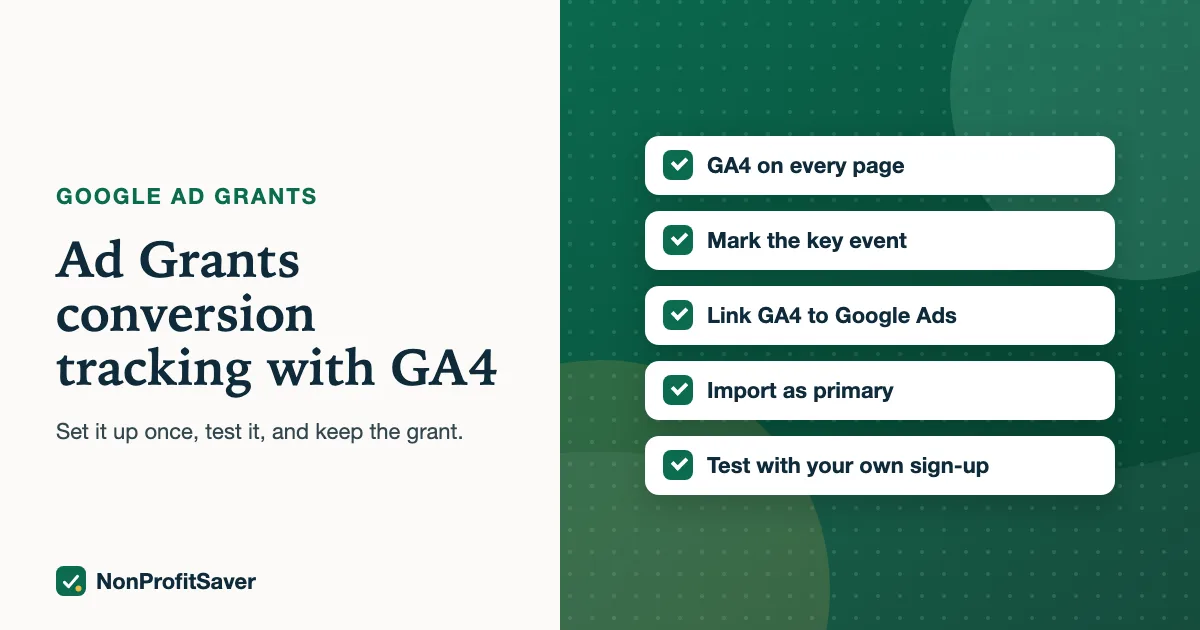
Ad Grants accounts created since January 2018 need valid conversion tracking and at least one conversion a month, and accounts created on or after 22 April 2019 must bid for conversions (Google's program policies, checked October 2026). The simplest way to meet both is to import a Google Analytics 4 (GA4) event into the grant account. This guide does it in seven steps.
Step 1: Choose what counts
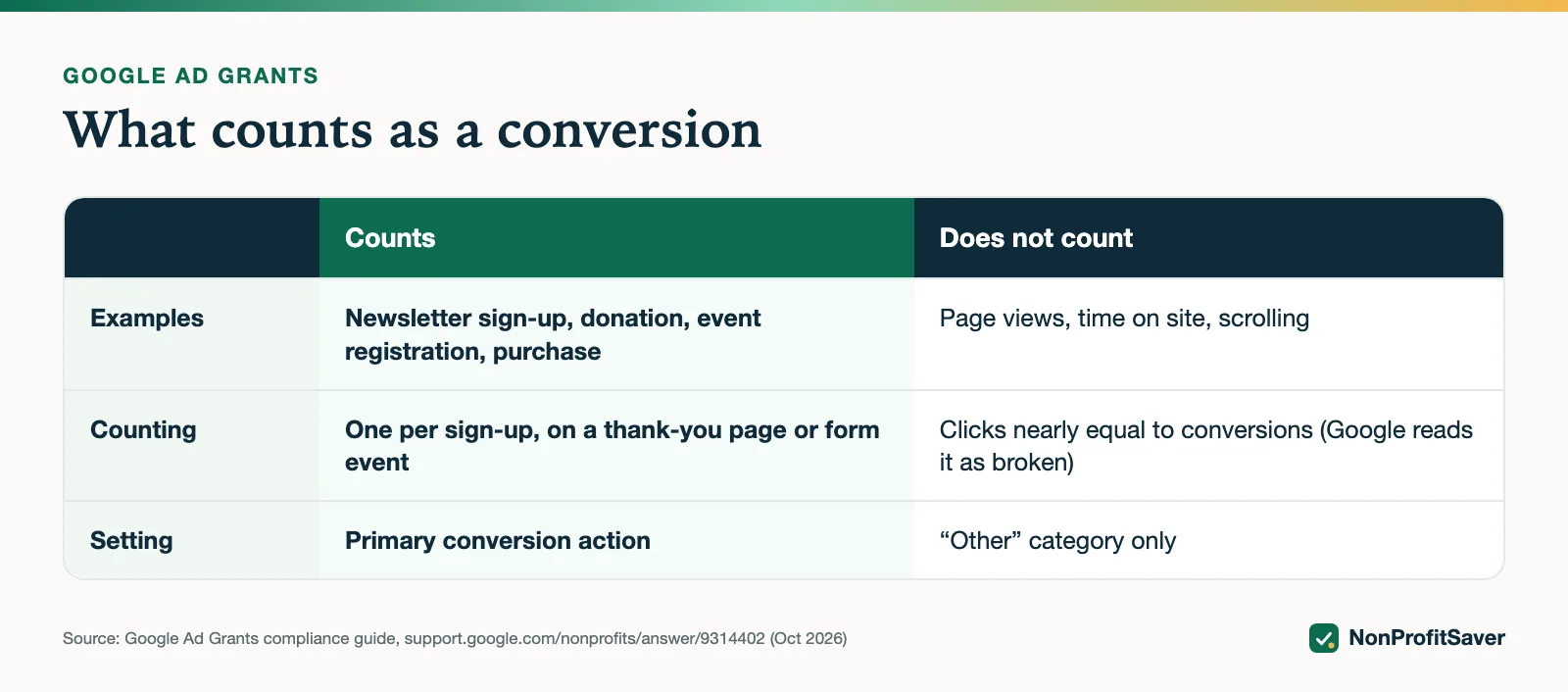
Pick one or two actions that show real interest in your mission:
- a newsletter or resource sign-up (GA4's recommended event name is
generate_lead); - a donation;
- an event or class registration;
- a purchase, if you sell resources.
Don't count page views, scrolling or time on site. Google's compliance guide says those belong in the "Other" category, and that clicks nearly equal to conversions is a sign of a broken setup.
Google's own examples of meaningful conversions, in its account management policy as of October 2026, are donations, volunteer sign-ups and email sign-ups. If phone calls are your main action, Google's conversion setup guide says Ad Grants requires a minimum call length of 30 seconds for a call to count.
Step 2: Make sure GA4 is on every page
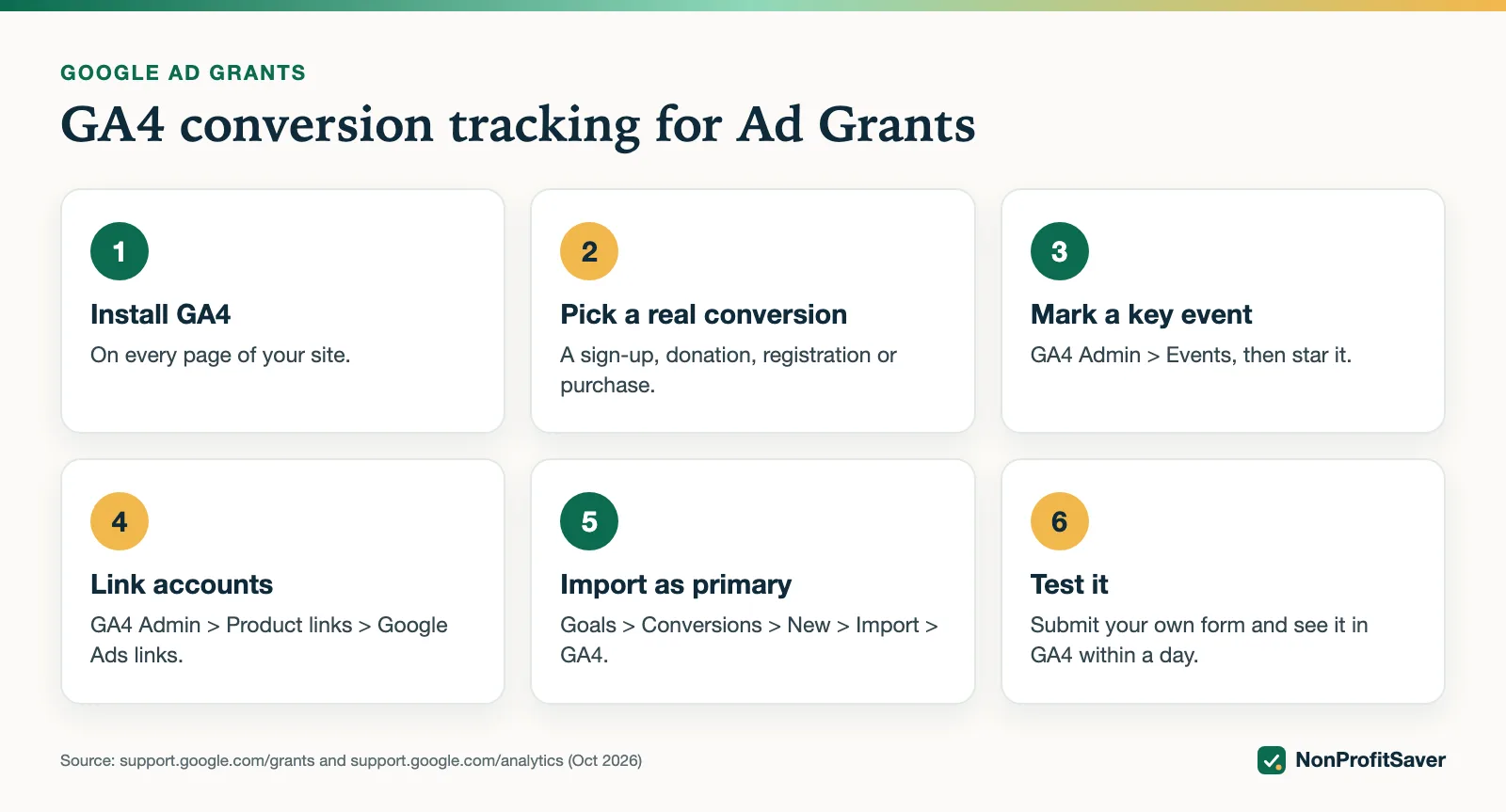
Your site needs the GA4 tag on every page, including thank-you pages. On WordPress, most sites use a plugin or Google's Site Kit. Check by opening your site and looking for your visit in GA4's Realtime report.
Step 3: Make the event fire
If your form or donation tool already sends a GA4 event, note its name. If not, the usual options are a thank-you page (count a view of that page as the conversion) or an event your form plugin sends. Count one conversion per sign-up, not one per page view.
Google's setup guide gives the same two routes. If you have a confirmation page, track that page; if you don't, track the click on the action button. Either way, the page or click should be one that people reach only after completing the action. A thank-you page that is also linked from your menu fails that test, because anyone can land on it.
Step 4: Mark it as a key event in GA4
In GA4: Admin, then Data display, then Events. Find your event and mark it as a key event. If it doesn't appear yet, complete your own sign-up once and wait for it to show up.
Step 5: Link GA4 to the grant account
In GA4: Admin, then Product links, then Google Ads links. Link the Ad Grants account (check the customer ID, so you don't link a paid account by mistake).
Google's GA4 import page lists the prerequisites as of October 2026: GA4 and Google Ads linked, auto-tagging turned on in Google Ads, and you as an administrator or editor of the GA4 property. Auto-tagging is the easy one to miss.
Step 6: Import into Google Ads and set as primary
In the grant account: Goals, then Conversions, then New conversion action, then Import, then Google Analytics 4 properties. Choose your event. Set it as a primary conversion action, so bidding uses it.
Check this setting even if you think you chose it. Google's import page says conversions created from GA4 key events are set as "secondary" to prevent double counting. Google's primary and secondary page explains why that matters: secondary actions are "for observation only" and show in the "All conversions" column, not in "Conversions", so bidding ignores them. An account can record sign-ups every day and still look like it has none to Smart bidding.
Two more settings from Google's setup guide: for leads such as a sign-up form, choose a count of One, so only one conversion counts per ad click; and Google recommends a 30-day view-through window to capture longer decisions such as volunteer sign-ups.
Step 7: Test it
Complete your own sign-up or a small test donation. Within a day, the event should appear in GA4. Within a couple of days, the conversion should show in Google Ads. If it doesn't, the problem is almost always that the event isn't firing on the page the ad sends people to.
Reading the status column
In Google Ads, each conversion action shows a status. Google's setup guide defines them as of October 2026:
| Status | What it means |
|---|---|
| Active | Working as intended |
| Needs attention | Something needs fixing; hover over the status for next steps |
| Inactive | Something isn't working |
| No recent conversions | No conversions recorded in the last 7 days |
"No recent conversions" isn't an error on its own. A small account with few clicks may go a week without one. It becomes a problem when it lasts into a month with zero, because the policy needs at least one a month.
The "too good to be true" check
Google's compliance guide says total clicks should not come close to total conversions, but it doesn't publish a cut-off. A worked example of what to look for:
| Month | Clicks | Conversions | Conversion rate |
|---|---|---|---|
| Healthy | 200 | 9 | 9 ÷ 200 = 4.5% |
| Suspicious | 200 | 185 | 185 ÷ 200 = 92.5% |
The second row usually means the conversion fires on something nearly everyone does, such as reaching a page. The fixes Google's compliance guide lists: count "one" instead of "every" conversion where that fits, track a thank-you page, or raise the bar for what counts. Don't treat 4.5% as a target; it's an illustration, and your rate depends on your pages and audience.
What we saw on our own account
On Storyline' grant account (the nonprofit that runs alongside NonProfitSaver), GA4 sign-up and purchase events were imported and set as primary on 20 October 2026. Three days later, Google still described every campaign as "Eligible (Limited): conversion tracking setup is incomplete, new bid strategy is learning", because the new campaigns had shown about a dozen times and no one had converted yet. Imported and working isn't the same as recording conversions. That's why the test in step 7 matters, and why every landing page needs a clear sign-up. More on that: why a new Ad Grants account barely shows.
Next
Once conversions record, build campaigns that send each search to the page that answers it: Google Ad Grants requirements. Which bid strategy to pick once conversions flow is covered in Ad Grants bidding, and what each landing page needs so visitors can convert is in Ad Grants landing pages. Our Google Ad Grants Kit ($97 once, early access; sales haven't opened yet) includes this setup in its guide; Google's free help center covers it too.
Frequently asked questions
Is conversion tracking required for Google Ad Grants?
Yes for accounts created since January 2018 and for any account using Smart bidding. The account needs valid conversion tracking and at least 1 conversion a month.
What counts as a conversion for Ad Grants?
Something meaningful: a sign-up, donation, event registration or purchase. Page views and time on site don't count as conversions and belong in the Other category.
Why does my Ad Grants account say conversion tracking setup is incomplete?
Usually because no conversions have been recorded yet, or the imported event isn't firing. Test it by completing your own sign-up and checking that GA4 records the event.
Related guides
- Google Ad Grants for Nonprofits: How It Works, the Rules and the Catch
- Google Ad Grants for Churches: Who Qualifies and What Paperwork Works
- How to Apply for Google Ad Grants, Step by Step
- Google Ad Grants Requirements: The Compliance Checklist
This guide is general information, not legal, tax, or financial advice. Prices change; see each linked source. Report a correction.