How to Build and Import an Ad Grants Campaign with Google Ads Editor
By Mike Krieg · Updated October 23, 2026
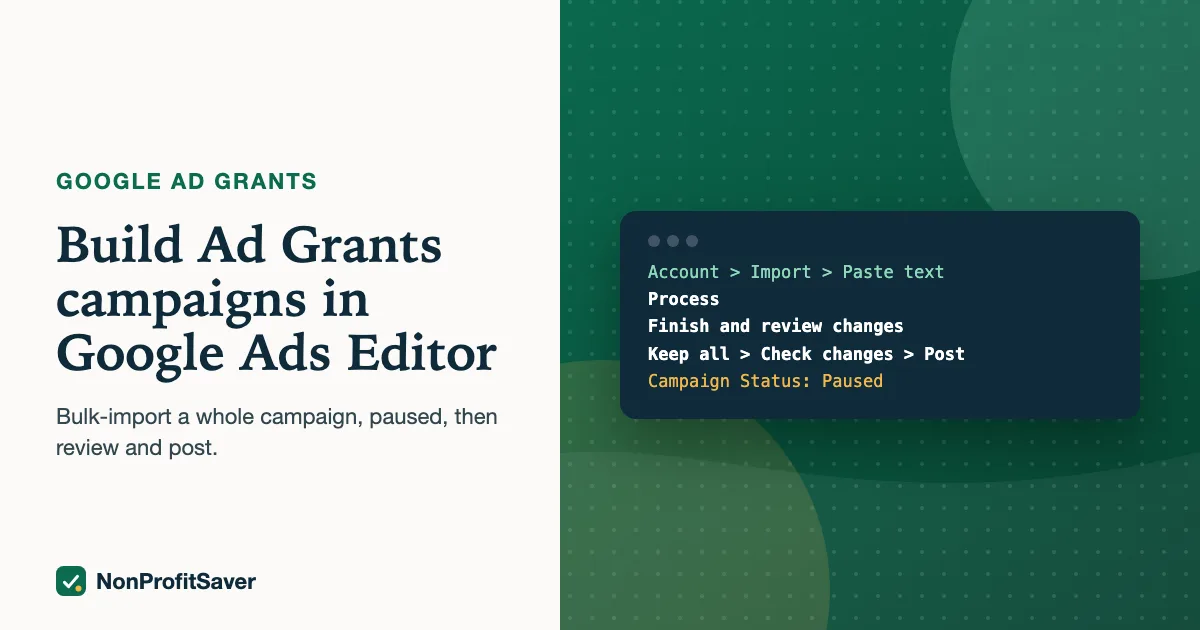
Google Ads Editor is Google's free desktop app for building campaigns in bulk, and it's the fastest way to put a complete Ad Grants campaign into an account: write the campaign as a tab-separated text file, then choose Account, Import, Paste text, and post it. Import it paused, check it, and enable it only when someone has approved it.
This is the method Storyline, the nonprofit that runs alongside NonProfitSaver, used on 23 October 2026 to post SENT (ES), a Spanish campaign with 4 ad groups, 38 keywords, 29 negative keywords, 20 locations, 8 responsive search ads and 4 sitelinks. Below are the file format, the clicks, the order of pastes, and the errors we hit, so you don't have to.
Why Ads Editor instead of the web interface
Google's Ads Editor page calls it, as of October 2026, "a free, downloadable application" that lets you "download one or more accounts, make changes offline, then upload the changes". For Ad Grants that has three advantages:
- The campaign is a file. Someone can read and approve the exact text before anything touches the account. Storyline writes a plain review copy from the same source.
- It's fast. SENT (ES) is 100 rows in one paste. Building 38 keywords and 8 ads with 11 headlines each by hand in the web interface would take hours.
- Nothing is live until you post. Changes sit in Editor as proposed changes until you choose to post them.
The catch: Editor is a different tool to learn, its labels change between versions, and a wrong paste can post a lot of changes at once. Importing paused is what makes that safe.
Step 1: Open the right account
Download Editor, sign in, and add the Ad Grants account. Check the 10-digit customer ID before you do anything. Storyline also has an old paid Google Ads account, and the grant campaigns must never go there; a grant account has no billing, a paid one charges your card.
Then choose Get recent changes, so Editor has the account's current state. Google's Mac quick reference lists it under "Download, post, or check changes" (Cmd+T; Ctrl+T on Windows).
Step 2: Write the campaign file
Editor reads tab-separated text with a header row of English column names. One file can create the campaign, its locations, negatives, ad groups, keywords and ads, one row per item. The columns Storyline uses:
Campaign, Campaign Daily Budget, Campaign Type, Networks, Languages, Bid Strategy Type, Maximum CPC bid limit, Campaign Status, EU political ads, Location, Ad Group, Ad Group Status, Keyword, Criterion Type, Ad type, Final URL, Path 1, Path 2, Headline 1 to Headline 15, Description 1 to Description 4, Status.
Each row fills only the columns it needs. A shortened view of SENT (ES):
| Row type | Campaign | Other filled columns |
|---|---|---|
| Campaign | SENT (ES) | Daily budget 20, Search, Google search, language es, Maximize clicks, CPC limit 2.00, Campaign Status Paused, EU political ads No |
| Location | SENT (ES) | Location: Mexico (one row per location) |
| Negative | SENT (ES) | Keyword: empleo, Criterion Type: Campaign negative broad |
| Ad group | SENT (ES) | Ad Group: Cómo evangelizar, Ad Group Status: Enabled |
| Keyword | SENT (ES) | Ad Group: Cómo evangelizar, Keyword: cómo compartir el evangelio, Criterion Type: Phrase (and a second row with Exact) |
| Ad | SENT (ES) | Ad type: Responsive search ad, Final URL, Path 1 and 2, Headlines 1 to 11, Descriptions 1 to 4, Status: Enabled |
The row count for SENT (ES) adds up like this: 1 campaign + 20 locations + 29 negatives + 4 ad groups + 38 keywords (19 phrases × 2 match types) + 8 ads = 100 rows.
Notice that the ad groups and ads are Enabled while the campaign is Paused. Nothing serves while the campaign is paused, and when you enable it later, everything inside is ready.
Final URLs carry tracking tags (utm_source=google, utm_medium=cpc, a campaign name and the ad group), so visits show up by campaign in Google Analytics.
Sitelinks go in a second, separate file with five columns: Campaign, Link Text, Description Line 1, Description Line 2, Final URL. SENT (ES) has four rows.
Step 3: Import with Paste text
The clicks Storyline used in October 2026, on a Mac:
- Account, then Import, then Paste text.
- Paste the whole campaign file into the grid. Check that each column header was recognized.
- Process.
- Finish and review changes.
- Keep all, after reading the list. Errors and warnings appear here if a row is wrong.
- Repeat steps 1 to 5 with the sitelinks file.
Google's own help pages label these steps a little differently depending on the page and version. Its Import a CSV file page describes Account, Import, "From file" or "Paste text", then "Review imported changes" and "Keep proposed changes"; its multiple accounts page uses "Process", an "Automatically accept all imported changes" checkbox and "Finish". If your buttons read differently, look for the same sequence: paste, process, review, keep. Leave automatic acceptance off so you see every change.
Step 4: Check changes, then Post
- Check changes (Cmd+K or Ctrl+K). Editor checks the pending changes for errors before anything is sent. Fix anything it flags.
- Post (Cmd+P or Ctrl+P). Google's posting page says to review the summary before confirming, and that "Any campaigns and ad groups containing changes that didn't post successfully remain in bold type". Copy the post report into a document if you want a record.
- Open the web interface and confirm the campaign is there, paused, with its ad groups, keywords, ads, locations and sitelinks.
Step 5: Review, then enable with a one-line paste
With the campaign posted but paused, whoever approves ads reads them in the web interface or in the review copy. For SENT (ES), the review copy asked for a Spanish speaker's read before it went live. When it's approved, enable it with a two-column paste:
| Campaign | Campaign Status |
|---|---|
| SENT (ES) | Enabled |
Same steps: Paste text, Process, review, keep, Check changes, Post. SENT (ES) went live this way at about 5:40 PM Central on 23 October 2026. We have no results from it yet and won't guess.
The order of pastes we used
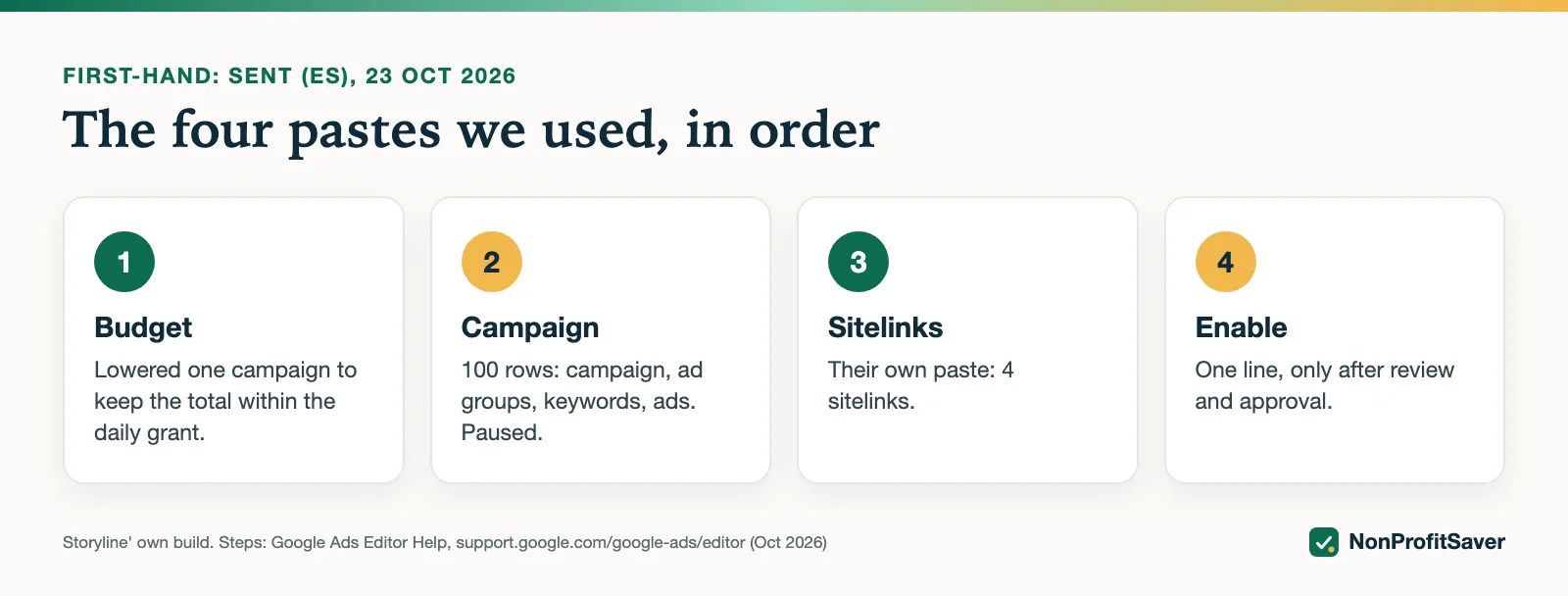
Storyline posted SENT (ES) as four small pastes, in this order:
| Paste | Columns | Why separate |
|---|---|---|
| 0. Budget | Campaign, Campaign Daily Budget | Lowered an existing campaign from $100 to $80 a day, so the new $20 campaign kept the account's total campaign budgets within the $329 a day grant limit |
| 1. Campaign | All of the above, 100 rows | The campaign itself, paused |
| 2. Sitelinks | 5 sitelink columns, 4 rows | Sitelinks need their own paste |
| 3. Enable | Campaign, Campaign Status | Only after approval |
Small pastes are easier to check, and if one fails you know which.
Errors we hit, and the fixes
From Storyline's first imports in October 2026:
- "EU political ads" must be set. Storyline's imports needed the EU political ads column set to No on every campaign row for the import to go through.
- No duplicate headlines in one ad. One ad repeated a headline and had to be fixed before it would post.
- Sitelinks didn't go in with the campaign file. They needed their own paste with their own columns.
- Import from inside the account. With the account open, the accounts-manager import was blocked; Account, Import from within the open account worked. When importing that way, drop any Account column from the file.
- Low search volume isn't an import error. After posting, some keywords showed "Not eligible: low search volume" in the web interface. That's a keyword choice problem, covered in Google Ad Grants keywords, not an import problem.
Why import paused, always
- Nothing goes live by accident. A typo in a status column could otherwise publish a draft.
- Approval stays with a person. Storyline's rule is that enabling or pausing a live campaign needs the director's say-so; a separate enable paste makes that a deliberate step.
- You can inspect it in the real interface before it spends any of the grant.
- Ad Grants rules apply from the first impression. A campaign that breaks the structure or keyword rules can hurt the account once it serves. Checking first is cheaper than reinstatement.
Doing it with or without the kit
You can write these files in a spreadsheet: one column per header above, save or copy as tab-separated text, and paste. Google's help pages linked above cover every button. Our Google Ad Grants Kit ($97 once, early access; sales haven't opened yet) includes a campaign builder that takes one campaign file in a simple JSON format and writes the campaign file, the sitelinks file and a review copy, importing paused by default. It refuses to write a campaign that breaks the Ad Grants rules: fewer than 2 ad groups, 2 ads or 2 sitelinks, single-word keywords, broad match, over-length text, duplicate headlines, or a bid strategy your account can't use. Plain about our interest: it's our paid product, and it's built on the workflow we use for Storyline' own Ad Grants account.
Before you import, it helps to have the pieces right: keywords, ads and sitelinks, bidding and landing pages.
Frequently asked questions
Is Google Ads Editor free?
Yes. Google describes it as a free, downloadable application. You download your account, make changes offline, then post them back to Google Ads.
Can I use Google Ads Editor with an Ad Grants account?
Yes. Storyline built and posted its Ad Grants campaigns with it in October 2026. Open the grant account by its customer ID so you don't import into a paid account by mistake.
Why import an Ad Grants campaign paused?
So nothing serves before someone has checked it in the Google Ads interface. Once the ads are reviewed and approved by your team, you enable the campaign with a one-line paste.
Related guides
- Google Ad Grants for Nonprofits: How It Works, the Rules and the Catch
- Google Ad Grants for Churches: Who Qualifies and What Paperwork Works
- How to Apply for Google Ad Grants, Step by Step
- Google Ad Grants Requirements: The Compliance Checklist
This guide is general information, not legal, tax, or financial advice. Prices change; see each linked source. Report a correction.