Google Ad Grants Account Access: Administrators, Access Levels and Getting Back In
By Mike Krieg · Updated October 23, 2026
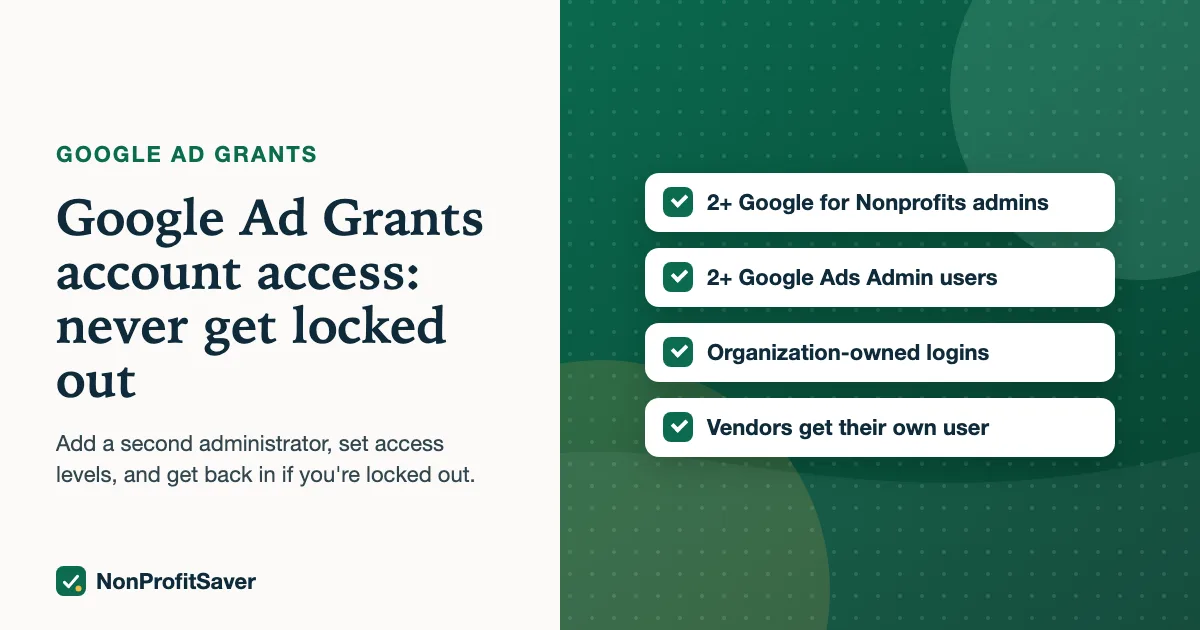
The safest Ad Grants account has at least two administrators in Google for Nonprofits and at least two Admin users in the grant's Google Ads account, all on logins your organization controls. If your only administrator has already left, you can request access from google.com/nonprofits, and Google says a request nobody answers goes to a Google representative after 14 days.
Losing access came up again and again when we read Google's nonprofit help forum in October 2026, and the threads we read started the same way: one staff member or volunteer set up the grant, and then they left. This guide covers both places access lives, what to set up now, and what to do if you're already locked out. Everything is from Google's help pages as of October 2026.
Two separate lists of people
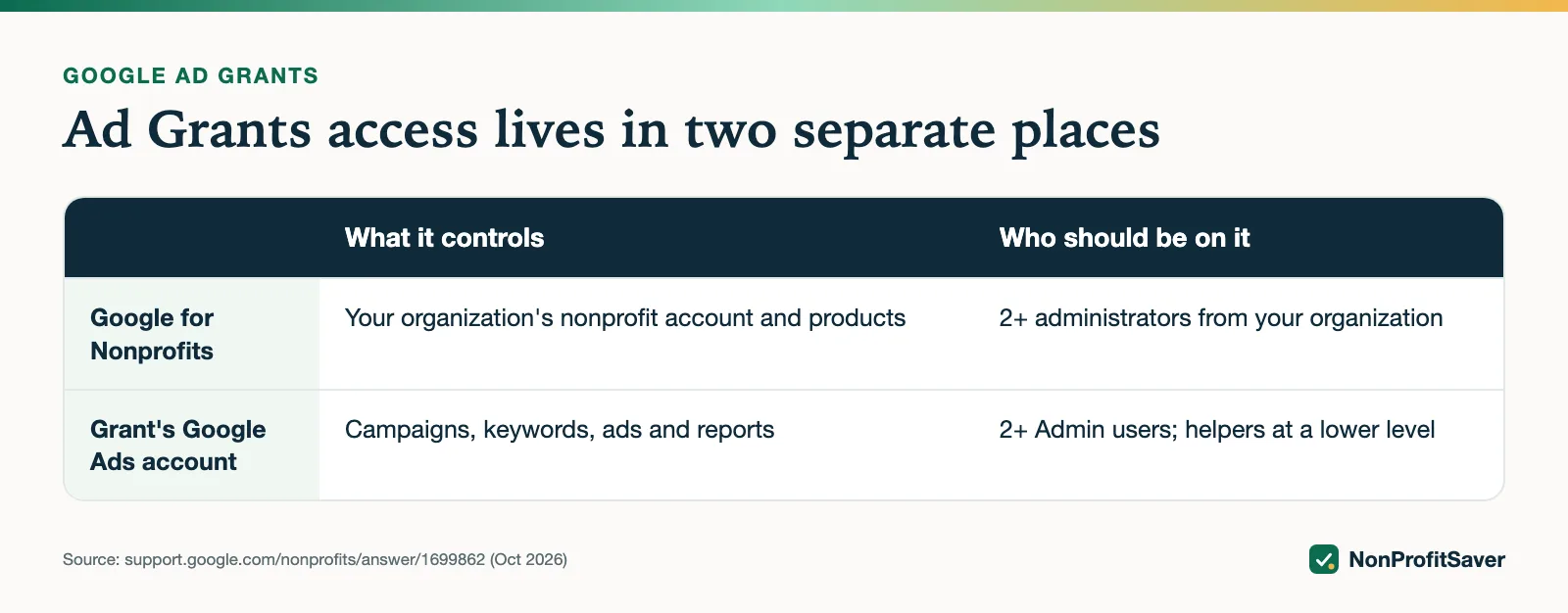
Ad Grants access lives in two places, and they don't update each other.
| Where | What it controls | Who should be on it |
|---|---|---|
| Google for Nonprofits (google.com/nonprofits) | Your organization's nonprofit account: which products are activated, who can request access to them | At least two administrators from your organization |
| The grant's Google Ads account (ads.google.com) | The campaigns, keywords, ads and reports | At least two Admin users; helpers at a lower level |
Google's add an administrator page says administrators added in Google for Nonprofits "are distinct from users or administrators added in the Google Admin console or Google Ad Grants." So adding someone to one list does nothing for the other.
Add a second Google for Nonprofits administrator
Google's steps, as of October 2026 (source):
- Go to google.com/nonprofits and sign in with your administrator account (the email you originally used to request the account).
- Select your organization's name to open your dashboard.
- Select the Administrators tab.
- Select Add Administrator.
- Enter the person's full name and email address. It "must be associated with an active Google Account."
- Select Add Administrator again to confirm. You both get an email.
One catch to know before you click: Google says "Co-administrators have the same rights as you to manage your organization's account," including activating products and removing other administrators. By adding someone, you also confirm they are an authorized representative of your organization. Add people you'd trust with the whole account, not a short-term volunteer.
Give the right Google Ads access level
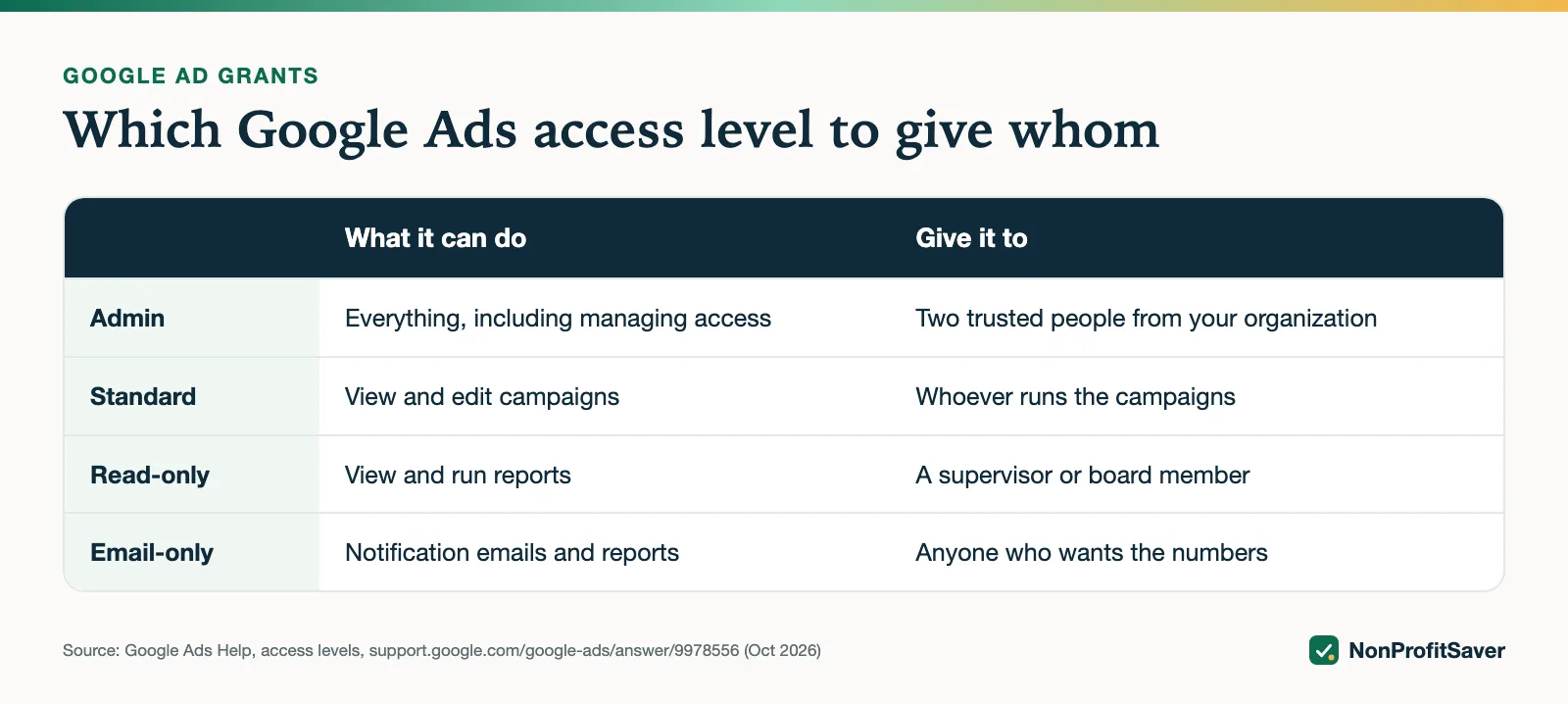
Inside the grant's Google Ads account, Google offers five access levels (source, October 2026):
| Level | What it can do | Give it to |
|---|---|---|
| Admin | Everything, including managing who has access and linking Google Analytics | Two trusted people from your organization |
| Standard | View and edit campaigns; create conversions from Google Analytics events | The staff member or volunteer who runs the campaigns |
| Read-only | View campaigns and tools, run reports | A board member, a supervisor, an outside reviewer |
| Billing | Billing information and payments profile | Rarely needed for a grant account, which isn't charged |
| Email-only | Notification emails and reports | Anyone who just wants the monthly numbers |
A simple rule: the person who does the weekly work doesn't need to be the person who can remove everyone else.
Habits that prevent a lockout
- Two of everything. Two Google for Nonprofits administrators and two Google Ads Admins, from two different people.
- Organization-owned logins. Use addresses your organization controls. Google's account access page notes that personal Gmail addresses, or ones tied only to a paid Google Ads account, won't give access to the grant account.
- Write it down. The grant account's 10-digit Customer ID, who holds Admin in each place, and the date you last checked. Keep it with your board records.
- Replace before you remove. When someone leaves, add their replacement first, then remove them.
- Never share a login with a vendor. Add an agency or consultant as their own user at the lowest level that does the job, and remove them when the work ends. This is also the first question in what to ask before hiring an agency.
- Check twice a year. Put it on the calendar next to your annual report.
If the last administrator left
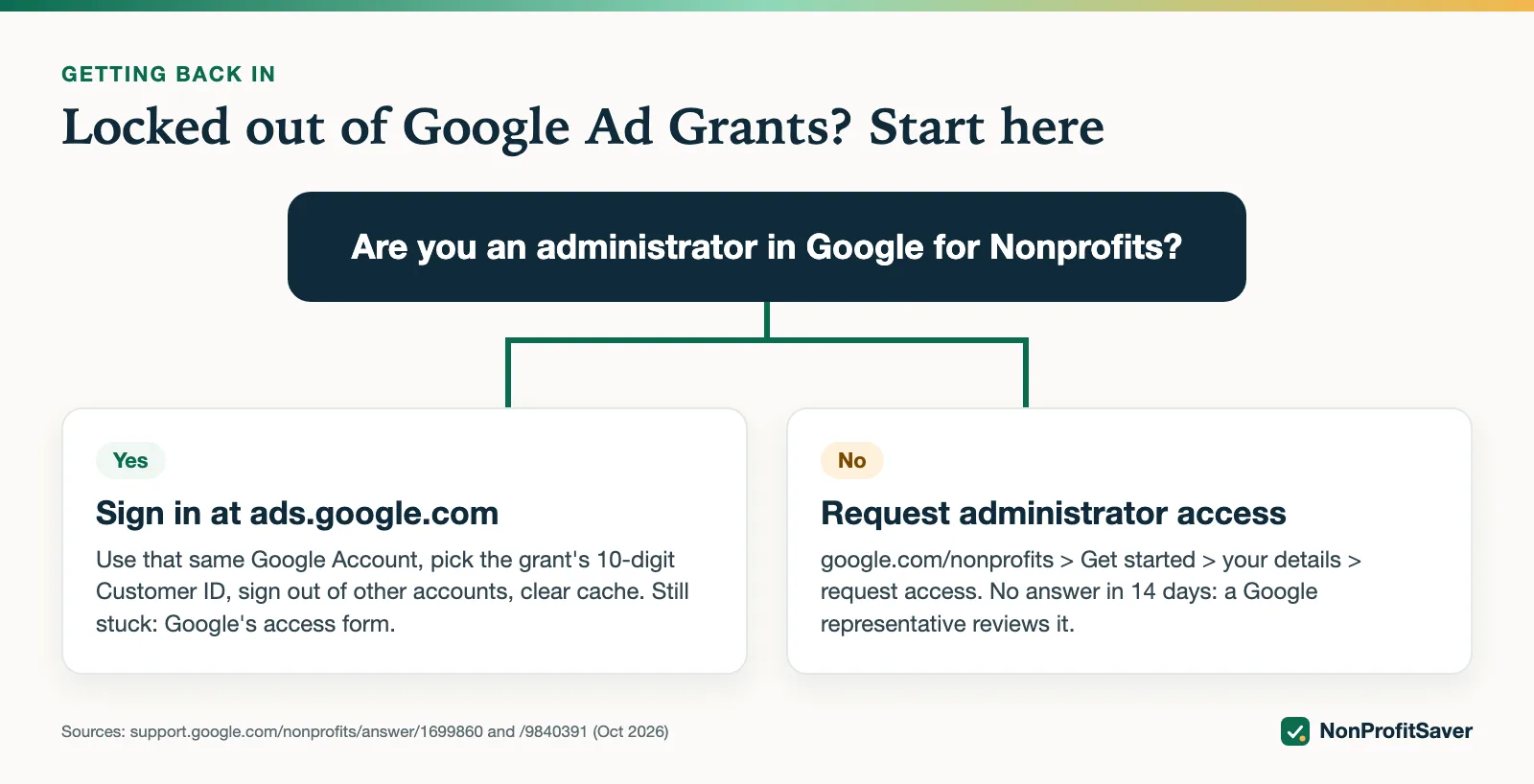
Google's steps for requesting administrator access, as of October 2026 (source), apply when "the previous administrator left without adding a new one" or you don't know who it was:
- Sign in with the Google Account you want to use as the new administrator.
- Go to google.com/nonprofits and select Get started.
- Follow the steps to enter your organization's details.
- When Google finds the existing account, submit an access request.
Google emails the current administrators. If no administrator responds within 14 days, the request goes to a Google representative for manual review, and Google says support can't speed that up. Plan on at least two weeks, and use the time to gather proof that you work for the organization.
If you're an administrator but can't open the grant account
Google's account access page gives the checks, as of October 2026:
- There is no separate Ad Grants login. Sign in at ads.google.com with the Google Account listed as an administrator in Google for Nonprofits.
- Pick the right account. Your grant has its own 10-digit Customer ID. If you also have a paid Google Ads account, make sure you've selected the grant one.
- Clear the usual culprits. Switch accounts from the profile icon, sign out of every Google Account and sign back in with the administrator email, and clear your browser's cache and cookies.
- Just approved? Google sends two invitations, one to the account and one to accept a payments profile (you aren't charged; it's required for access). Google says to allow up to 3 business days and to check spam and promotions folders.
- Still stuck? Google's page links an Ad Grants account access form. Include the steps you've already tried.
What Google doesn't say
Google's pages don't say how long the representative's review takes after the 14 days, what proof it asks for, or what happens if two people from the same organization both request access. Plan for the review to take time, and keep a letter or email from your organization's leadership naming the new administrator ready to send.
Doing it with or without help
Everything above takes about ten minutes once, with Google's own pages. Our Google Ad Grants Kit ($97 once, early access; sales haven't opened yet) includes this as a chapter of its setup guide, alongside the compliance checklist, a campaign builder and a weekly check; it's our paid product, and you don't need it to do any of the steps here. If your grant is also not spending, see why your Google Ad Grant isn't spending, and if the account has been paused, Google Ad Grants reinstatement.
Frequently asked questions
How do I add an administrator to Google for Nonprofits?
Sign in at google.com/nonprofits as an administrator, select your organization, open the Administrators tab and select Add Administrator. The new person's email must belong to an active Google Account.
What if our only Ad Grants administrator left?
Request administrator access from google.com/nonprofits by selecting Get started and entering your organization's details. Google says that if no administrator responds within 14 days, the request goes to a Google representative for review.
Is there a separate Ad Grants login page?
No. Google says there isn't a unique Ad Grants login page; you sign in at ads.google.com with the Google Account listed as an administrator in Google for Nonprofits, then select the grant account's 10-digit Customer ID.
Related guides
- Google Ad Grants for Nonprofits: How It Works, the Rules and the Catch
- Google Ad Grants for Churches: Who Qualifies and What Paperwork Works
- How to Apply for Google Ad Grants, Step by Step
- Google Ad Grants Requirements: The Compliance Checklist
This guide is general information, not legal, tax, or financial advice. Prices change; see each linked source. Report a correction.